
Updating your WordPress theme keeps your site secure, compatible with the latest WordPress version and working with your plugins. It usually takes one click – but if you edited the theme’s files directly, an update can wipe those changes. This guide shows five ways to update a WordPress theme, how to do it safely, and how to fix the most common update errors.
Page Contents
Before you update: 3 quick checks
- Back up your site. Use your host’s backup or a plugin such as UpdraftPlus – see how to back up a WordPress site.
- Did you edit the theme’s files? Changes made directly in the theme (for example in
style.cssorfunctions.php) are replaced by the update. Move them to a child theme first (see below). Changes made in Appearance › Customize or the Site Editor are stored in the database and are kept. - Read the changelog on the theme’s page for big changes, especially on major version jumps.
For a busy or business site, test the update on a staging copy first – many hosts offer one-click staging.
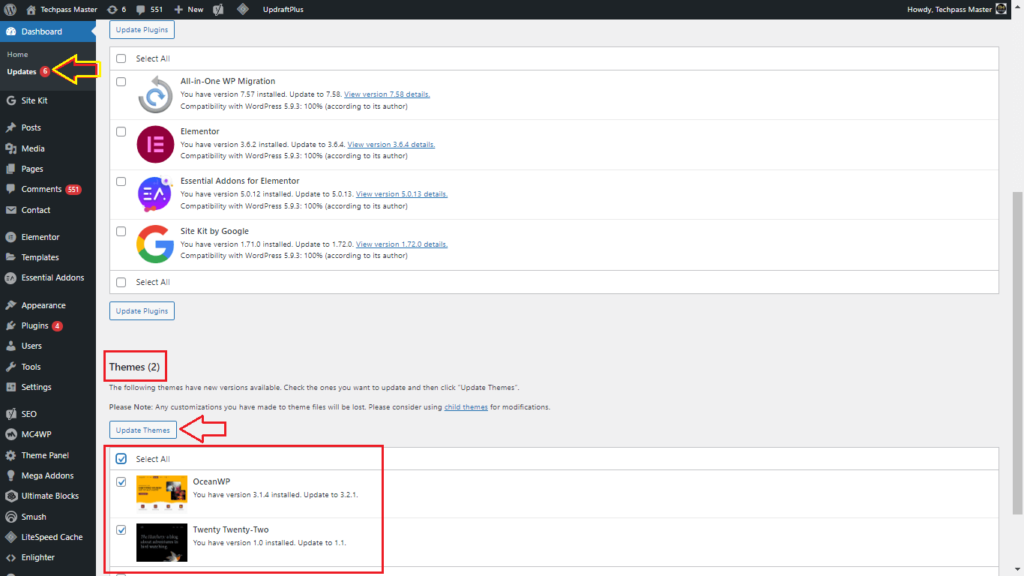
Method 1: Dashboard › Updates
- Go to Dashboard › Updates.
- Scroll to Themes, tick the themes you want to update (or Select All).
- Click Update Themes. WordPress downloads and installs the new versions.
Method 2: Appearance › Themes
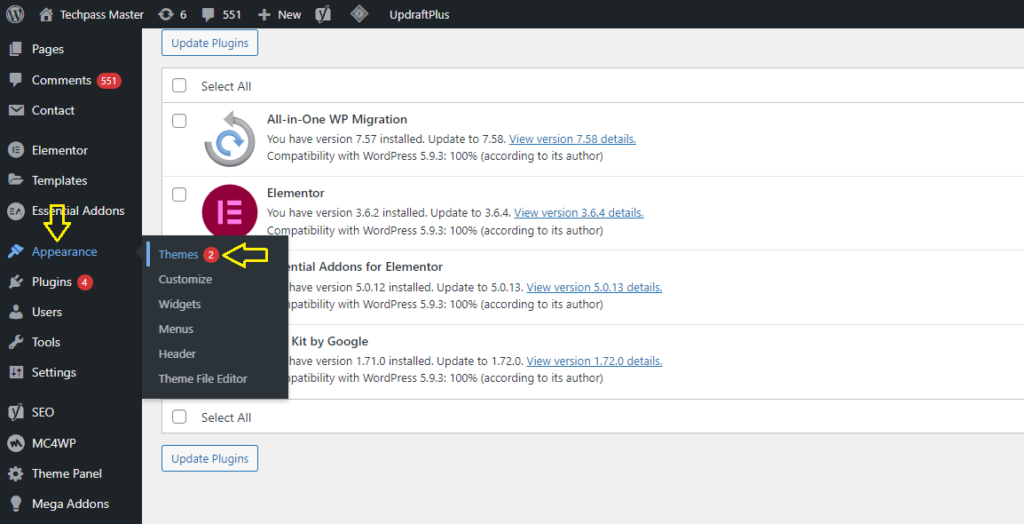
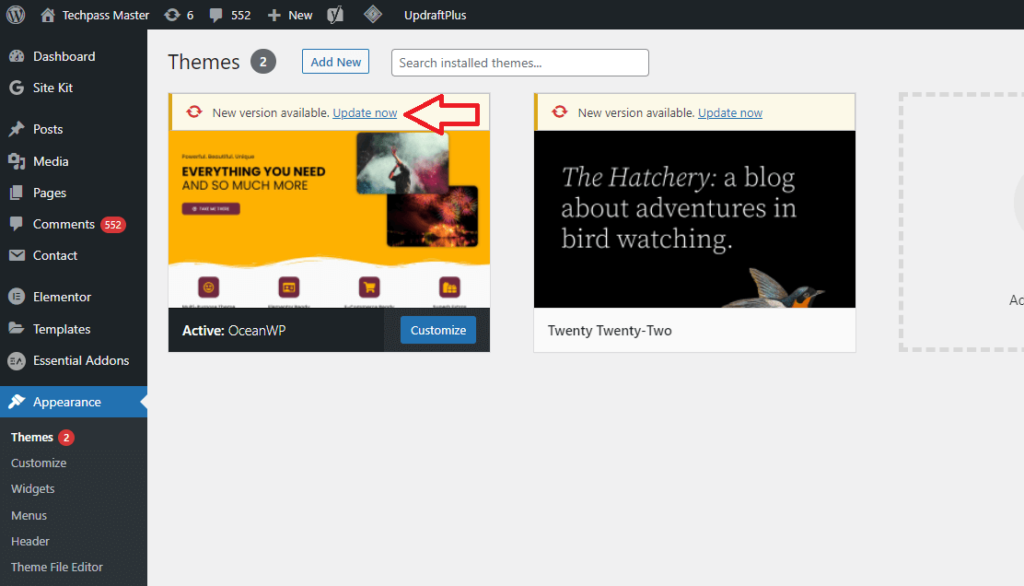
- Go to Appearance › Themes. Themes with an update show a “New version available” notice.
- Click update now on the theme, or open Theme Details and click Update now.
- Wait until it says Updated!.

Method 3: Turn on automatic updates
In Appearance › Themes, open Theme Details and click Enable auto-updates. WordPress will then install new versions of that theme automatically. This is a good choice for themes from the WordPress.org directory if you have regular backups and no edits in the theme files.
Method 4: Upload a new ZIP (premium themes)
Premium themes bought from marketplaces or theme shops often don’t update from the dashboard unless you enter a license key. You can update them manually:
- Download the latest theme ZIP from your account on the seller’s site.
- Go to Appearance › Themes › Add New Theme › Upload Theme and choose the ZIP.
- WordPress notices the theme is already installed and offers Replace active with uploaded. Click it to update.
Method 5: FTP or your host’s File Manager
Use this only if you can’t reach the dashboard. Unzip the new theme on your computer, then upload the theme folder to /wp-content/themes/, replacing the old folder. Upload to a new folder name first and switch over if you want a way back.
Keep your changes with a child theme
A child theme inherits everything from the main (parent) theme but keeps your own CSS and code in a separate folder, so parent updates don’t overwrite it. A minimal child theme needs a style.css with this header:
/*
 Theme Name: My Theme Child
 Template:   my-theme
*/
Template must match the parent theme’s folder name. Then add a functions.php that loads the parent stylesheet, activate the child theme, and put your custom code there. Many themes also offer a ready-made child theme download. Block themes can often avoid file edits altogether by using the Site Editor.
After updating, check
- The homepage, a post and a page on desktop and mobile.
- Menus, widgets and header/footer.
- Contact forms and checkout, if you have them.
- Clear your caching plugin and CDN cache so visitors see the new version.
Common problems and fixes
| Problem | Fix |
|---|---|
| “Update failed: Could not create directory” | File permissions on wp-content are wrong. Ask your host to fix ownership/permissions, or update via FTP. |
| Site stuck in “Briefly unavailable for scheduled maintenance” | Delete the .maintenance file in your WordPress root folder via FTP or File Manager. |
| White screen or error after the update | Rename the theme’s folder via FTP to switch to a default theme, then restore your backup or contact the theme developer. |
| Custom design changes disappeared | They were made in the theme files. Restore them from your backup into a child theme. |
| No update shows for a premium theme | Enter your license key in the theme’s settings, or use Method 4. |
FAQ
Will updating my WordPress theme delete my content?
No. Posts, pages, media and Customizer settings are stored in the database and stay. Only changes made directly inside the theme’s files are overwritten.
How often should I update my theme?
Install updates soon after they’re released, especially security fixes. With backups in place, turning on auto-updates is the easiest option.
Should I update WordPress, plugins or the theme first?
Back up first, then update plugins and the theme, then WordPress core – or follow the order recommended in each update’s notes. Test the site after each step.
